



JudyC
New member
I wish I had a nickle for every time I saw someone posting on the BOI saying they don't know how to post a screen shot. Screen shots are a critical tool in sharing evidence of claims and anyone should be able to complete this simple task.. There are several steps involved, but they are all relatively simple.
Unfortunately, I only work on a Windows PC and know nothing about Macs or other operating systems...maybe someone else can chime in with hints on completing these steps using those.
A note to the mods: If I've posted this in the wrong place, I hope you don't mind moving it!
TO BEGIN:
1.) It all starts with the "PrtScn" button on your keyboard. It should look something like this:

Keyboards can vary considerably, so yours may be in a different spot, or may even be lettered differently, but it's on there somewhere.
When you push that button, EVERYthing you are currently seeing on your screen is "copied" just as if you had pushed Ctrl-C. Any open windows that are visible...any background images and icons...whatever your eyeballs can see, that is what will copy.
SO...make sure that whatever you want to share on the BOI (or anywhere) is clearly visible.
2. Your next step is to open a photo editing program. Once that is open, you simply Ctrl-V (paste) on your new blank page, and your screen shot will pop up.
If you're already familiar with editing photos or whatnot, then the rest is simple for you. Crop the image to show only the pertinent information you are sharing...resize if necessary...and save the image as a .jpg.
(When resizing a screen shot, it's important to not shrink it too much, or the data you are trying to share may not be readable...you can try resizing the window before you take the shot so it will crop smaller without having to shrink the text.)
3. Upload the image.
Two primary ways to go about this.
A. You can upload to a file sharing website like Photobucket. Once the image is uploaded there, you can post the image by putting the image-address inside the tags like this:
[PLAIN][IMG]http://www.photobucket.com/myalbum/filename.jpg[/PLAIN]
Photobucket and most other sites like it will already have that code ready for you to copy. The downside to this method is that if you ever delete that picture or change any information like the album name or whatever, then your thread/post here at Fauna will lose the image.
B. You can upload the picture directly to your post by attaching the file.

This way the image will be permanently attached to your post. The downside to this is that you're only allowed a finite amount of server space to use for attachments. Once that is used up, you'll have to host elsewhere as mentioned above.
And that's about it!
What if you don't know how to crop/resize/save pictures?
I'm not going to go into a detailed tutorial for that, as that would be a whole 'nother thread. But some quick hints for you that should get you rolling...at least if you're using Windows.
Windows comes with a program called "Paint" that is already installed. There are also freebie programs you can download from the net. But for simplicity's sake, we'll look at Paint.
Click the Windows button at the bottom left corner...
All Programs ---> Accessories ---> Paint

In Paint, when you paste your screen shot onto your blank page, that blank page will automatically stretch to fit the whole image.
To crop:

A. Select the rectangle box to bring up a small + shaped cursor on your image. Drag the cursor to build a box around the part of the image you want to crop.
B. Then simply click the "Crop" button.
To resize:
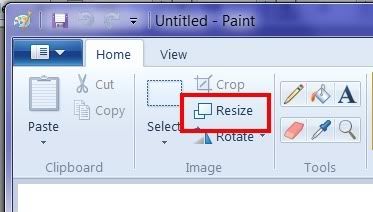
Click on the "Resize" button...and you can choose to resize the entire image using a flat percentage or by using pixels.
To Save:

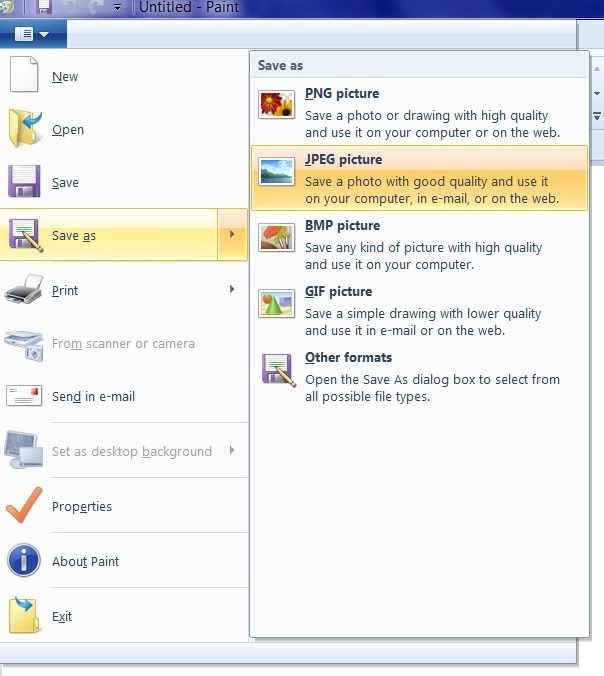
Give it an appropriate name...and voila!
Then simply upload using the methods already described above.
I hope this has been helpful, at least for some!
Unfortunately, I only work on a Windows PC and know nothing about Macs or other operating systems...maybe someone else can chime in with hints on completing these steps using those.
A note to the mods: If I've posted this in the wrong place, I hope you don't mind moving it!
TO BEGIN:
1.) It all starts with the "PrtScn" button on your keyboard. It should look something like this:
Keyboards can vary considerably, so yours may be in a different spot, or may even be lettered differently, but it's on there somewhere.
When you push that button, EVERYthing you are currently seeing on your screen is "copied" just as if you had pushed Ctrl-C. Any open windows that are visible...any background images and icons...whatever your eyeballs can see, that is what will copy.
SO...make sure that whatever you want to share on the BOI (or anywhere) is clearly visible.
2. Your next step is to open a photo editing program. Once that is open, you simply Ctrl-V (paste) on your new blank page, and your screen shot will pop up.
If you're already familiar with editing photos or whatnot, then the rest is simple for you. Crop the image to show only the pertinent information you are sharing...resize if necessary...and save the image as a .jpg.
(When resizing a screen shot, it's important to not shrink it too much, or the data you are trying to share may not be readable...you can try resizing the window before you take the shot so it will crop smaller without having to shrink the text.)
3. Upload the image.
Two primary ways to go about this.
A. You can upload to a file sharing website like Photobucket. Once the image is uploaded there, you can post the image by putting the image-address inside the tags like this:
[PLAIN][IMG]http://www.photobucket.com/myalbum/filename.jpg[/PLAIN]
Photobucket and most other sites like it will already have that code ready for you to copy. The downside to this method is that if you ever delete that picture or change any information like the album name or whatever, then your thread/post here at Fauna will lose the image.
B. You can upload the picture directly to your post by attaching the file.
This way the image will be permanently attached to your post. The downside to this is that you're only allowed a finite amount of server space to use for attachments. Once that is used up, you'll have to host elsewhere as mentioned above.
And that's about it!
What if you don't know how to crop/resize/save pictures?
I'm not going to go into a detailed tutorial for that, as that would be a whole 'nother thread. But some quick hints for you that should get you rolling...at least if you're using Windows.
Windows comes with a program called "Paint" that is already installed. There are also freebie programs you can download from the net. But for simplicity's sake, we'll look at Paint.
Click the Windows button at the bottom left corner...
All Programs ---> Accessories ---> Paint
In Paint, when you paste your screen shot onto your blank page, that blank page will automatically stretch to fit the whole image.
To crop:
A. Select the rectangle box to bring up a small + shaped cursor on your image. Drag the cursor to build a box around the part of the image you want to crop.
B. Then simply click the "Crop" button.
To resize:
Click on the "Resize" button...and you can choose to resize the entire image using a flat percentage or by using pixels.
To Save:
Give it an appropriate name...and voila!
Then simply upload using the methods already described above.
I hope this has been helpful, at least for some!





