
• Responding to email notices you receive.
    **************************************************
    In short, DON'T! Email notices are to ONLY alert you of a reply to your private message or your ad on this site. Replying to the email just wastes your time as it goes NOWHERE, and probably pisses off the person you thought you replied to when they think you just ignored them. So instead of complaining to me about your messages not being replied to from this site via email, please READ that email notice that plainly states what you need to do in order to reply to who you are trying to converse with.

  • IMPORTANT! PLEASE READ!! About the Google Adsense ads being displayed

    =====================
    Posted 08/15/2025
    =====================


    Yeah, I know. They are a pain in the butt. But they pay the bills to keep my server running. Just a fact of life, I am afraid.

    Want to get rid of them? Simple. Just become a Contributor level member or above and they will be gone. -> Please click HERE."

    Is that too much for me to ask of you to keep this site running? Well, sorry about that. I too wish I could get everything for free. But alas.....

    =====================
    Addendum: 01/10/2026
    =====================


    Google Adsense ad revenue for December, 2025 was just $30 over the cost of the lease for the server running this site. So, in effect, the money providing the incentive for me to continue running this site is coming SOLELY from the paid memberships and sponsorships here. Which honestly ain't much....

Page Capture and post. How do you do it?

coyote

New member
Joined
Sep 21, 2004
Messages
688
Reaction score
0
Points
0
Location
foot of the Pintlers
Can someone please outline for me how to copy?/capture a page, as it is on the screen, (like a snapshot of the page sort of) and then paste it in an email or reply?

JimO does this all the time. I want to know how to do it too.

Thank you.
 
You could just have asked me directly. :cool:

  1. Have the desired screen "on top"
  2. Press the "Print Screen" button
  3. Open a graphics program like Paint (I use Photoshop)
  4. Create a new, blank document
  5. Go to the Edit menu and select Paste (or hit Ctrl+V)
  6. Edit the image
  7. Save it as a JPEG
  8. Voila!!

These instructions are for Windows operating systems. I use crop and resize to get the image to no more than 800x1000 pixels as per Fauna's attachment policy.

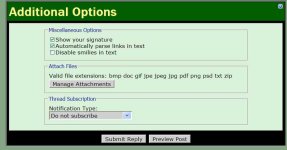
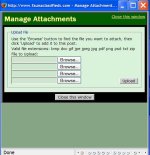
When you are ready to use it in a post, selct the "Manage Attachments" button under "Additional Options", "Bowse" to select the file, "Upload" and it will be there.
 

Attachments

  • additional options.jpg
    additional options.jpg
    50.3 KB · Views: 82
  • manage attachments.jpg
    manage attachments.jpg
    65.8 KB · Views: 97
Excellent!
Oo, oo, oo! Outline. Pictures. Everything.
This is very user friendly.

Thanks much!

Yes, I could have asked directly, but that seemed presumptuous.
Look how lovely your instruction is now recorded for posterity.

It's a darn good thing I asked because there are more steps than I thought. I'd have been tearing my hair out trying to figure it out on my own.
 
Back
Top